Showing posts with label win 7. Show all posts

Wednesday, 15 August 2012

convert text to audio using notepad

wanna convert your text to audio using your notepad......:)
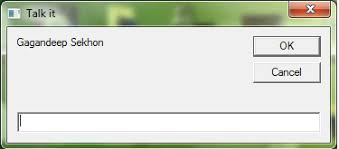


         >  Open Notepad.
  1. Copy and paste the below mentioned code (which is coloured)

      Dim msg, sapi
      msg=InputBox("Enter your text- www.computerzmagic.blogspot.com","mymagic")
      Set sapi=CreateObject("sapi.spvoice")
      sapi.Speak msg
  2. Save this file with any name with .vbs as extension. For example: computerzmagic.vbs

Nopw you have to open the saved file and in the tab appeared type the text which you want to convert to audio and press enter.....thats it..the fun begins.....

Saturday, 21 July 2012

windows 7 shortcuts...........;)

Windows Management Shortcuts

Here's a few more interesting hotkeys for you:

* Ctrl+Shift+N: Creates a new folder in Windows Explorer.
* Alt+Up: Goes up a folder level in Windows Explorer.
* Alt+P: Toggles the preview pane in Windows Explorer.
* Shift+Right-Click on a file: Adds Copy as Path, which copies the path of a file to the clipboard.
* Shift+Right-Click on a file: Adds extra hidden items to the Send To menu.
* Shift+Right-Click on a folder: Adds Command Prompt Here, which lets you easily open a command prompt in that folder.
* Win+P: Adjust presentation settings for your display.
* Win+(+/-): Zoom in/out.
* Win+G: Cycle between the Windows Gadgets on your screen.


* Win+Home: Clear all but the active window.
* Win+Space: All windows become transparent so you can see through to the desktop.
* Win+Up arrow: Maximize the active window.
* Shift+Win+Up arrow: Maximize the active window vertically.
* Win+Down arrow: Minimize the window/Restore the window if it's maximized.
* Win+Left/Right arrows: Dock the window to each side of the monitor.
* Shift+Win+Left/Right arrows: Move the window to the monitor on the left or right. dragging with the mouse:

* Drag window to the top: Maximize
* Drag window left/right: Dock the window to fill half of the screen.
* Shake window back/forth: Minimize everything but the current window.
* Double-Click Top Window Border (edge).


Taskbar Shortcuts

You can use any of these shortcut combinations to launch the applications in their respective position on the taskbar, or more:

* Win+number (1-9): Starts the application pinned to the taskbar in that position, or switches to that program.
* Shift+Win+number (1-9): Starts a new instance of the application pinned to the taskbar in that position.
* Ctrl+Win+number (1-9): Cycles through open windows for the application pinned to the taskbar is that position.
* Alt+Win+number (1-9): Opens the Jump List for the application pinned to the taskbar.
* Win+T: Focus and scroll through items on the taskbar.
* Win+B: Focuses the System Tray icons


In addition, you can interact with the taskbar using your mouse and a modifier key:

* Shift+Click on a taskbar button: Open a program or quickly open another instance of a program.
* Ctrl+Shift+Click on a taskbar button: Open a program as an administrator.
* Shift+Right-click on a taskbar button: Show the window menu for the program (like XP does).
* Shift+Right-click on a grouped taskbar button: Show the window menu for the group.
* Ctrl+Click on a grouped taskbar button: Cycle through the windows of the group.


Friday, 20 July 2012

VLC media player shortcuts...

 
Most Used
f Fullscreen
Space Pause or play movie
v Subtitles cylce/off
b Audio track cycle
Ctrl+Arrow Up/Ctrl+Arrow Down Volume

Mouse Actions
Double click Fullscreen
Scroll Volume or Position (see settings)
Right click Local menu (play controls, audio/video)

Movie Navigation
Ctrl+d Open disc menu
Ctrl+f Open folder (browse folder menu)
Ctrl+r/Ctrl+s Advanced open file
Ctrl+o Open single file(s)
m Mute and unmute audio
p Play movie (from the very beginning)
s Stop movie
Esc Exit full screen mode
[+]/-/= Faster, slower, normal
a Aspect ratio
c Crop screen
g/h Decrease subtitle delay / Increase subtitle delay
j/k Decrease audio delay / Increase audio delay
z Change zoom mode
Ctrl+1, ctrl+2, ctrl+3, ctrl+4 Recent media (in Media - Recent media menu)
t Show time
Ctrl+t Goto time

Jump in playback
Shift+Left/Right Very short jump (3 seconds)
Alt+Left/Right Short jump (10 seconds)
Ctrl+Left/Right Medium jump (1 minute)
Ctrl+Alt+Left/Right Long jump

Manage VLC, Playlists, and Special Commands
Ctrl+h Hide / unhide controls
Ctrl+p Preferences/ interface settings
Ctrl+e Adjustments and audio/video effects
Ctrl+b Edit bookmarks
Ctrl+m Open messages
Ctrl+n Open network
Ctrl+c Open captue device
Ctrl+l Open playlist
Ctrl+y Save playlist
Ctrl+i/Ctrl+j Media information
Alt+a Open audio menu
Alt+h Open help menu
Alt+m Open media menu
Alt+p Open playlist menu
Alt+t Open tool menu
Alt+v Open video menu
Alt+l Open playback menu
d Show movie path
n Play next movie from playlist
F1 Show Help
F11 Window full-screen (not equal to pressing F)
Alt+F4, Alt+q or Ctrl+q Quit VLC